Use this guide to sign in to Microsoft Office apps like Word, Excel, and PowerPoint using your EduPass credentials.
Step 1: Open any Office application
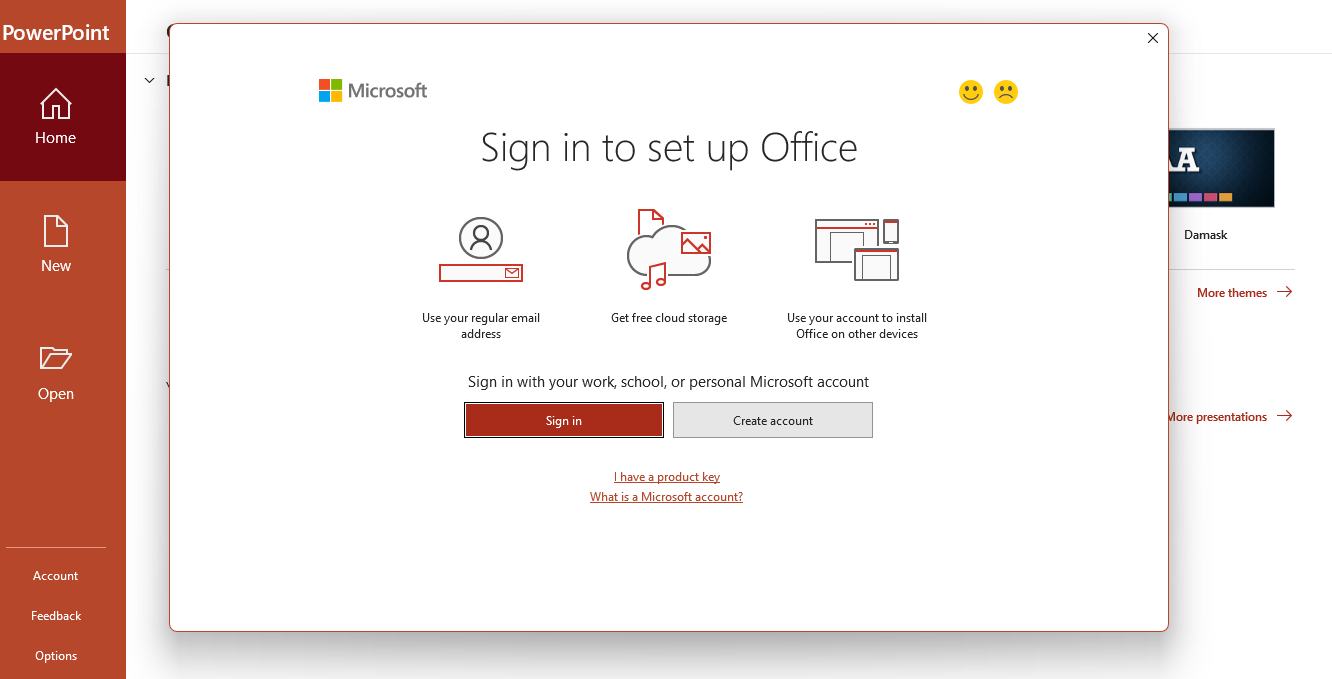
Open Word, Excel, PowerPoint, or another Microsoft Office app. You will see a prompt to Sign in.
Step 2: Enter your EduPass email address
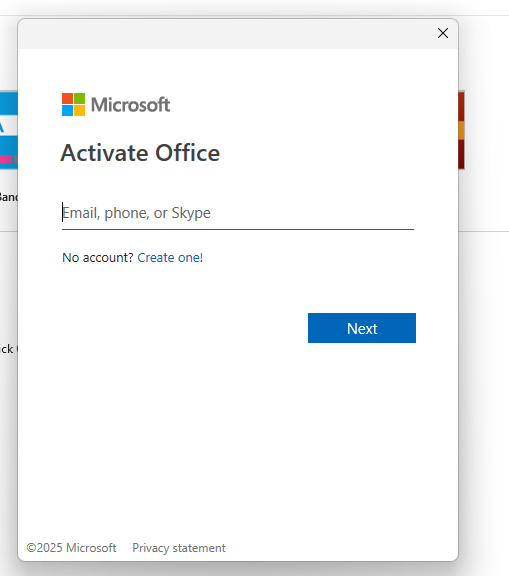
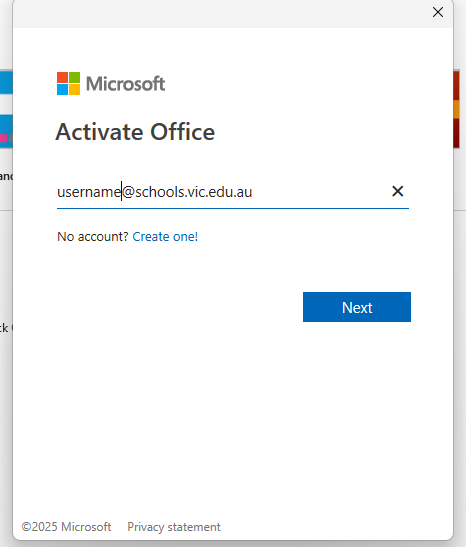
Enter your full EduPass email address (e.g., yourusername@schools.vic.edu.au) and click Next.
Step 3: Log in with your EduPass username and password
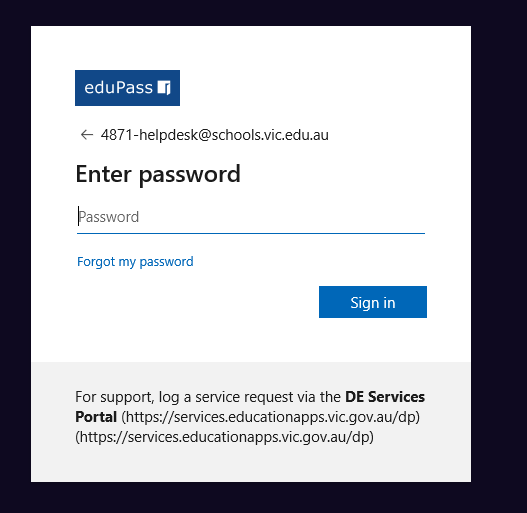
You will be redirected to the EduPass login page. Enter your EduPass username (usually without the domain) and password, then click Sign In.
Edupass account details are same as your Minecraft Account details
Step 4: Accept the license agreement
On first-time login, you may be asked to accept the Microsoft Office license agreement. Click Accept.
Step 5: You are signed in!
You now have full access to Office apps linked to your EduPass account.
Was this article helpful?
That’s Great!
Thank you for your feedback
Sorry! We couldn't be helpful
Thank you for your feedback
Feedback sent
We appreciate your effort and will try to fix the article